Theme Options

Developing Themes for WordPress: Part 4

Theme OptionsWhen you develop a theme for WordPress, you should consider giving your users a few customizable options so they can easily modify certain elements to their liking. Simple and easy-to-use controls are always the best, and now WordPress 3.0 makes it extremely easy to add features such as a custom menu, background color/image editor, featured image selector and header images. All it takes is a few lines of code in your functions.php file and your theme will be up and running with some amazing options.

Custom Menus

Before WordPress 3.0, the only way to truly customize your menu was to do it manually. The default functions either allowed you to list categories, or pages, or links, but not all three together. And ordering them required a plugin. Now, all it takes is one simple function and the new menu system will be activated on your theme so users can customize their menus ’til the cows come home. To activate custom menus in your theme, add the following to your functions.php file:
add_theme_support( 'nav-menus' );
NOTE: Always make sure that when you add PHP to your functions.php file, it is included within the <?php ?> tags. To really take control of the custom menus once you have activated them, you should also define some locations where they can be displayed.
register_nav_menu( 'main', 'Main Navigation Menu' );
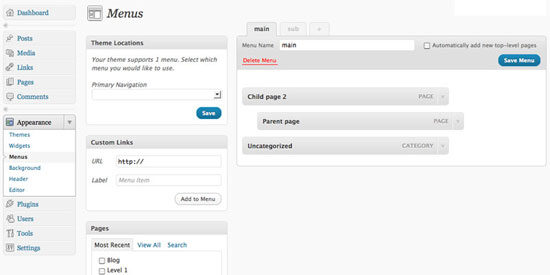
The above registers a new menu location called “main.” When your users create a new menu, they can assign it to that location so it will be displayed on the front end. You can create as many theme locations as you wish so your users can place custom menus in multiple places.
Custom Menu System
The new custom menu system in WordPress 3.0
Once you have registered a few menu locations, you need to actually add some code to your template files to display those menus. The following will display the “main” menu in the header.php file.
wp_nav_menu( array(
	'theme_location' => 'main',
	'sort_column' => 'menu_order',
	'container_id' => 'main-navigation'
) );
This will display the “main” menu if one has been assigned to that theme location. It will sort the menu according to how it is organized in the custom menu page, and it will surround it in a div container with the id “main-navigation.” There are many more parameters that can be set for this function. Check out https://codex.wordpress.org/Function_Reference/wp_nav_menu for more info.

Background Editor

This one is extremely easy to implement if you don’t plan on doing anything fancy with it. Add the following to functions.php to activate it:
add_custom_background();
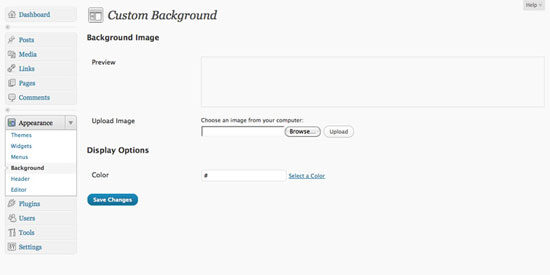
This will add a link in the Appearance panel for Background. Clicking on that link will bring up the following screen:
Backgroudn Editor
The new background editor in WordPress 3.0
Now your users can either select a color for their background, or add an image. If you want to design your theme with a default background, you’ll need to use the add_custom_background() function to set some callbacks to define your default background color or image.
add_custom_background( $header_callback, $admin_header_callback, $admin_image_div_callback );
You can read more about the custom background callbacks in the codex at https://codex.wordpress.org/Function_Reference/add_custom_background.

The Featured Image

This was actually a feature that was introduced in WordPress 2.9, but it’s one that I think all themes should take advantage of. Activating this option allows your users to select an image to represent their post. It doesn’t need to be inserted into their post or even in that specific post’s image gallery. Activate it by adding this to your functions.php file:
add_theme_support( 'post-thumbnails', array( 'post', 'page' ) );
You can set whether it works with pages and posts, or just one or the other. Leaving the second parameter blank will automatically set it for all posts and pages. It will also set it for all custom post types that you might create. Once the option is activated, a new panel will appear on the post/page edit screen with a link to set a featured image. This will just bring up the media upload screen and the option to use an image as a featured image will appear near the bottom. There are also some cool additional functions you can use to set specific sizes for your image, in case your theme requires certain sized images for different areas.
set_post_thumbnail_size( 80, 80, true );
add_image_size( 'category-thumb', 200, 150, true ); // adding 'true' as a final parameter crops the image to those exact dimensions
The first piece of code will lock in a thumbnail size for your theme. This means it won’t be able to be modified under the Media link in the WordPress admin settings. The second line creates a new defined image size named “category-thumb.” When users upload new images, any image size you add using add_image_size() will tell WordPress that a new image thumbnail needs to be created with those dimensions. To display the featured image in one of your theme templates requires the use of this function, and it must be placed within the loop:
 'alignleft' ) );
  }
?>
The above code will fetch the ‘category-thumb’ image if one exists for that post, set its class to ‘alignleft’ and display it. Outside of the loop, you would have to use get_the_post_thumbnail($post->ID, $name, $attr). Read more about it at https://codex.wordpress.org/Function_Reference/the_post_thumbnail.

The Header Image

If you take a look at TwentyTen, you can see how this option can make it extremely easy for your users to add a custom image to the header of your theme. If you don’t plan on designing your theme with a large header image, you can still use this option to allow them to add a logo to their header. This one gets a little complex so it might be best to just point you toward the codex: https://codex.wordpress.org/Function_Reference/add_custom_image_header

Part 5: The Other Stuff

There is a lot more that you can add to your theme and tomorrow I am going to focus on the few things that people asked me about during my WordCamp presentation. Part 1: Guidelines for Developing a WordPress Theme Part 2: Basic Template Files Part 3: Understand The WordPress Loop Part 4: Adding Theme Options Part 5: Making Money
Businessman choosing image by Tombaky, provided by Pixmac.

WordPress maintenance vs management is the single most expensive misunderstanding in the WordPress services market, and most agencies actively make it worse.

Quick answer: In the WordPress maintenance vs management comparison, maintenance is the technical upkeep that keeps a site running — updates, backups, security scanning, uptime monitoring. Management includes all of that and adds ownership of the site’s direction and performance. Maintenance keeps the site alive. Management is accountable for what it does.

Most providers reduce WordPress maintenance vs management to two tiers sitting side by side on a pricing page. Pick one.

That framing is wrong, and it is why so many businesses sign a contract expecting one thing and receive the other. Maintenance and management are not siblings. Management is the superset that contains maintenance. Every genuine management engagement includes the full maintenance task list. No maintenance plan includes management.

Get the WordPress maintenance vs management decision wrong and you end up with a site that is perfectly updated, perfectly backed up, perfectly secure — and going nowhere.


WordPress maintenance vs management at a glance

 WordPress MaintenanceWordPress Management
Core questionIs the site working?Is the site working for the business?
PostureReactive and scheduledProactive and strategic
Who decides what changesYou do. The provider executes.The provider recommends. You approve.
ScopeUpdates, backups, security scans, uptime monitoringEverything in maintenance, plus performance, content, SEO, conversion, roadmap
Monthly deliverableA completed-tasks reportA performance report with recommendations
Measured byUptime, patch currency, backup successTraffic, rankings, conversions, revenue
Accountable for outcomesNoYes
Typical US cost$50–$200/mo$250–$2,000+/mo
If you skip itThe site breaksThe site quietly stops competing

WordPress maintenance vs management: the 7 critical differences

Seven differences do the real work in WordPress maintenance vs management. Everything else is a variation on them.

1. Detection. Under maintenance, you notice problems first. Under management, your provider does.

2. Decision-making. Maintenance executes your instructions. Management forms its own recommendations.

3. Accountability. Maintenance is accountable for tasks completed. Management is accountable for business outcomes.

4. Scope boundaries. Maintenance has a fixed task list. Management has a roadmap that changes with your goals.

5. Reporting. Maintenance reports what was done. Management reports what happened and what to do next.

6. Judgement. Maintenance keeps your existing plugins updated. Management questions whether you should be running them at all.

7. Direction. Maintenance preserves the status quo. Management moves the site somewhere.


What WordPress maintenance actually covers

WordPress maintenance is the recurring technical work required to keep an installation secure, current and available. Whether you run the list in-house or buy WordPress maintenance services from an agency, that list barely changes month to month:

  • Core, plugin and theme updates, staged and tested before they touch production
  • Offsite backups with periodic restore tests — an untested backup is a guess
  • Security scanning and malware monitoring, plus firewall rules and login hardening
  • Uptime monitoring with alerting
  • Database optimisation — post revisions, expired transients, orphaned tables
  • Broken link and 404 monitoring
  • PHP compatibility checks ahead of host-forced version bumps
  • A monthly report confirming what was done

That is the whole category. It is genuinely valuable and genuinely finite.

The defining characteristic is that the provider is not deciding anything. If your plugin roster is wrong, maintenance keeps the wrong plugins updated. If your homepage does not convert, maintenance keeps a non-converting homepage online with excellent uptime.


What WordPress management adds on top

Management contains the full maintenance list, then adds responsibility for direction and performance. That is the line between buying a maintenance plan and buying website management services: one keeps the site current, the other is answerable for what it achieves.

You cannot manage a site you are not maintaining. You can absolutely maintain a site nobody is managing — and a great many businesses are doing exactly that.

Management adds performance ownership, content and publishing, SEO oversight, conversion work, roadmap planning, vendor coordination, and reporting that ties site metrics to business outcomes.


The one test that settles WordPress maintenance vs management

Ignore the feature list. Ask one question:

When something on your site should change, who notices first?

Under maintenance, you notice. You find the broken contact form when a customer complains, email your provider, and they fix it — billing you if it falls outside scope. Detection sits with you. That is not a failure; it is how maintenance is designed.

Under management, your provider notices, and comes to you with a diagnosis before you have seen the problem.

Detection order matters more than response time. If your provider’s first awareness of a problem is your email, a two-hour response SLA is irrelevant. The delay already happened, and it was measured in days.


Why “my host handles updates” is dangerously wrong

This is the costliest misunderstanding inside the WordPress maintenance vs management question, and the documentation is partly to blame.

Plugin and theme auto-updates are off by default in WordPress. The explicit statement lives on make.wordpress.org rather than user-facing docs. There is a setting called plugins_auto_update_enabled that defaults to true, which is easy to misread as auto-updates being on. It only controls whether the interface elements display.

More significantly: any plugin or theme not hosted in the WordPress.org directory receives no automatic updates at all. The update check is a single request matched by directory slug, so a commercial product produces no result. If you run a premium theme or paid plugins — and most business sites do — that entire portion of your attack surface is invisible to every automatic mechanism in the platform.

The scale is not small. Patchstack recorded 11,334 new WordPress vulnerabilities in 2025, a 42% year-on-year rise, with 91% in plugins. (Patchstack, State of WordPress Security in 2026)

Here is why that lands on the management side of the WordPress maintenance vs management line. Patching on schedule is a checklist task. Deciding which plugins are worth their attack surface, keeping a tracked manual process for every commercial product the auto-updater cannot see, and noticing when a vendor has abandoned a plugin — those are judgement calls. No checklist produces them.

One honest caveat. The widely repeated claim that plugin vulnerabilities cause most WordPress compromises is not currently sourced. The 91% figure describes the vulnerability catalogue, not breach causes. The most recent hacked-site telemetry, Sucuri’s 2023 report, found 13.97% of compromised sites had a vulnerable component present — presence, not cause. Meanwhile Wordfence blocked 55 billion password-hacking attempts against 48 billion vulnerability-targeting requests in 2024, and both vendors name stolen credentials as the rising intrusion source. (Wordfence, 2024 Annual WordPress Security Report)

Which is itself the argument. Maintenance patches. Management looks at where the evidence points and fixes your credential controls too.


WordPress maintenance vs management in five real scenarios

ScenarioMaintenance onlyFull management
Critical plugin vulnerability disclosedPatched next scheduled cycleIdentified, staged, tested, deployed — including commercial plugins no auto-updater reaches
Traffic spike overloads the serverSite slows; you hear it from visitorsLoad monitored, resources scaled before users notice
Rankings decline over three monthsYou find it in Analytics weeks laterFlagged in the monthly report with a fix
Contact forms stop capturing leadsYou find out when prospects stop callingConversion tracking catches it and escalates
Seasonal campaign needs a new featureYou request a quote; billed separatelyProposed proactively as part of the roadmap

That is WordPress maintenance vs management in practice: maintenance keeps the engine running, management drives the car somewhere.


Where hosting and support fit into WordPress maintenance vs management

Managed WordPress hosting covers the server: infrastructure uptime, server-side caching, platform security, sometimes automatic core updates. It does not cover anything inside your install. If a plugin update breaks your checkout, your host will tell you that is not their problem.

WordPress support services are reactive help on request. Something breaks, you open a ticket, someone fixes it. Support is measured in response time. Maintenance is measured in prevention.

The clean hierarchy:

  1. Hosting — where the site runs
  2. Maintenance — keeping what runs healthy
  3. Support — fixing what breaks
  4. Management — all of the above, plus deciding what should change and owning the result

WordPress maintenance vs management: which does your business need?

Your decision is not which to pick. It is how far up the hierarchy your site needs to go.

WordPress maintenance vs management: choose maintenance when…

  • The site is primarily informational, changing infrequently
  • It is not central to lead generation or revenue
  • Someone internal can handle edits and recognise breakage
  • You accept being first to notice problems, because the stakes are lower

Paying management rates here is a waste. Buy good maintenance and spend the difference elsewhere.

WordPress maintenance vs management: choose management when…

  • The site supports lead generation, ecommerce or donations
  • Downtime or slow performance has material financial impact
  • You cannot describe the site’s roadmap for the next year
  • Multiple integrations create dependencies nobody is watching
  • Nobody internally owns the site’s performance

This is the most expensive gap we see: a site receiving excellent maintenance, no downtime in two years, and not one ranking position gained. The provider did nothing wrong — nobody asked them to.

If you are losing leads because something broke and nobody noticed for days, you do not have a maintenance problem. You have a management gap.

Start with maintenance, upgrade later when…

You are early, budget is tight, and the site is not yet a primary channel. Set a trigger and revisit. The mistake is not starting with maintenance — it is staying there for four years while expecting management outcomes.


Five questions that settle WordPress maintenance vs management before you sign

  1. Who decides what changes on my site? “You tell us” means maintenance.
  2. How do you detect issues, and how fast? Management describes monitoring, alerting and SLAs.
  3. Do you test updates in staging first? Lower tiers push straight to production.
  4. What is in the monthly report? Completed tasks is maintenance. Metrics with recommendations is management.
  5. What is out of scope, and what does it cost? A provider who cannot answer quickly has not thought about it.

Red flags

  • A plan marketed as management, priced at maintenance rates, with no strategic work
  • No proactive monitoring beyond a basic uptime check
  • No tracked process for commercial plugins and themes
  • The provider has never contacted you first. You always initiate.

Audit which side of WordPress maintenance vs management you are paying for

  1. Review the last three issues. Did your provider flag them, or did you?
  2. Check six months of reports. Tasks, or metrics with recommendations?
  3. Count your commercial plugins and themes — those get nothing automatically.
  4. Map the site’s business role. Revenue or leads means maintenance alone is insufficient.
  5. Match spend to need. Do not overpay on a brochure site; do not underpay on a revenue site.

WordPress maintenance vs management FAQ

What is the difference between WordPress maintenance vs management?

Maintenance is scheduled technical upkeep — updates, backups, security scanning, uptime monitoring. Management includes every maintenance task and adds ownership of performance, content, SEO and business outcomes. Maintenance sits inside management rather than beside it, which is why every management plan includes maintenance but no maintenance plan includes management.

No. Managed hosting is a server product covering infrastructure, caching and platform security. Management is a service relationship covering everything inside your site, including strategy. You can have both, and most active business sites should.

Over the past six months, has your provider contacted you about a performance decline or a ranking drop before you noticed? Do reports contain recommendations, or only completed tasks? If the answer to both is no, you are receiving maintenance regardless of what the invoice says.

Yes, and many businesses should. As traffic and revenue dependence grow, the cost of nobody noticing problems first grows with them. Most providers offer stackable tiers that make the transition straightforward.

In the US market, WordPress maintenance plans typically run $50–$200 per month. Management generally starts around $250 and rises with scope, commonly reaching $1,000–$2,000 where the provider owns SEO, content and conversion work.

Because plugin and theme auto-updates are off by default in WordPress, and anything outside the WordPress.org directory receives no automatic updates at all. Most business sites run at least one commercial theme or paid plugin, so the platform’s automatic machinery cannot reach a meaningful part of the attack surface.

Yes, and for a simple site it is reasonable. Budget two to four hours a month. The failure mode is not incompetence — it is the third consecutive month where something more urgent came up.

With proper monitoring, critical issues should be detected within minutes and a six-business-hour response is a reasonable benchmark. But detection matters more than response. If your provider’s first awareness comes from your email, the delay already happened.

The site stays secure, current and online. It will not improve. Over two or three years, competitors actively managing their sites will out-rank and out-convert you, and your maintenance reports will show green the entire time.

WordPress maintenance vs management: the short version

The WordPress maintenance vs management question comes down to this: maintenance answers “is the site working?” Management answers “is the site working for the business?” One is contained inside the other, and confusing them is the most common reason businesses feel let down by a provider who is technically delivering exactly what was purchased.

Work out which question you need answered, then buy accordingly.

Search

Popular Posts

Small Biz Website Tips Newsletter

Stay up to date with the latest marketing, sales, and service tips and news.

Small Biz Website Tips Newsletter

Stay up to date with the latest marketing, sales, and service tips and news.